Contact Us

If you still have questions or prefer to get help directly from an agent, please submit a request.
We’ll get back to you as soon as possible.

Please fill out the contact form below and we will reply as soon as possible.

  • Alder Knowledge Base Home
  • Contact Us
  • Home
  • Luna Simple Panel
  • Preferences and Settings

Understanding Your Panel Display

Updated at December 4th, 2025

Contact Us

If you still have questions or prefer to get help directly from an agent, please submit a request.
We’ll get back to you as soon as possible.

Please fill out the contact form below and we will reply as soon as possible.

  • Account
  • Alder System
    Installation Using System Arming/Disarming System Troubleshooting
  • Luna Simple Panel
    Installation Preferences and Settings Using System Arming/Disarming System Troubleshooting History and Alarm Events
  • FAQ
  • Alder App
    Alder App- Troubleshooting
  • GC2 Panel
    Using the GC2 Panel Troubleshooting the GC2 Panel FAQ - GC2 Panel
  • Cameras
    Outdoor Camera - Alder Indoor Camera - Alder Doorbell Camera How to Use- Cameras Troubleshooting- Alder Camera
+ More
 

We’re thrilled to have you as part of the Alder family. Your safety is our top priority, and we’re here to help you feel confident and protected every step of the way.

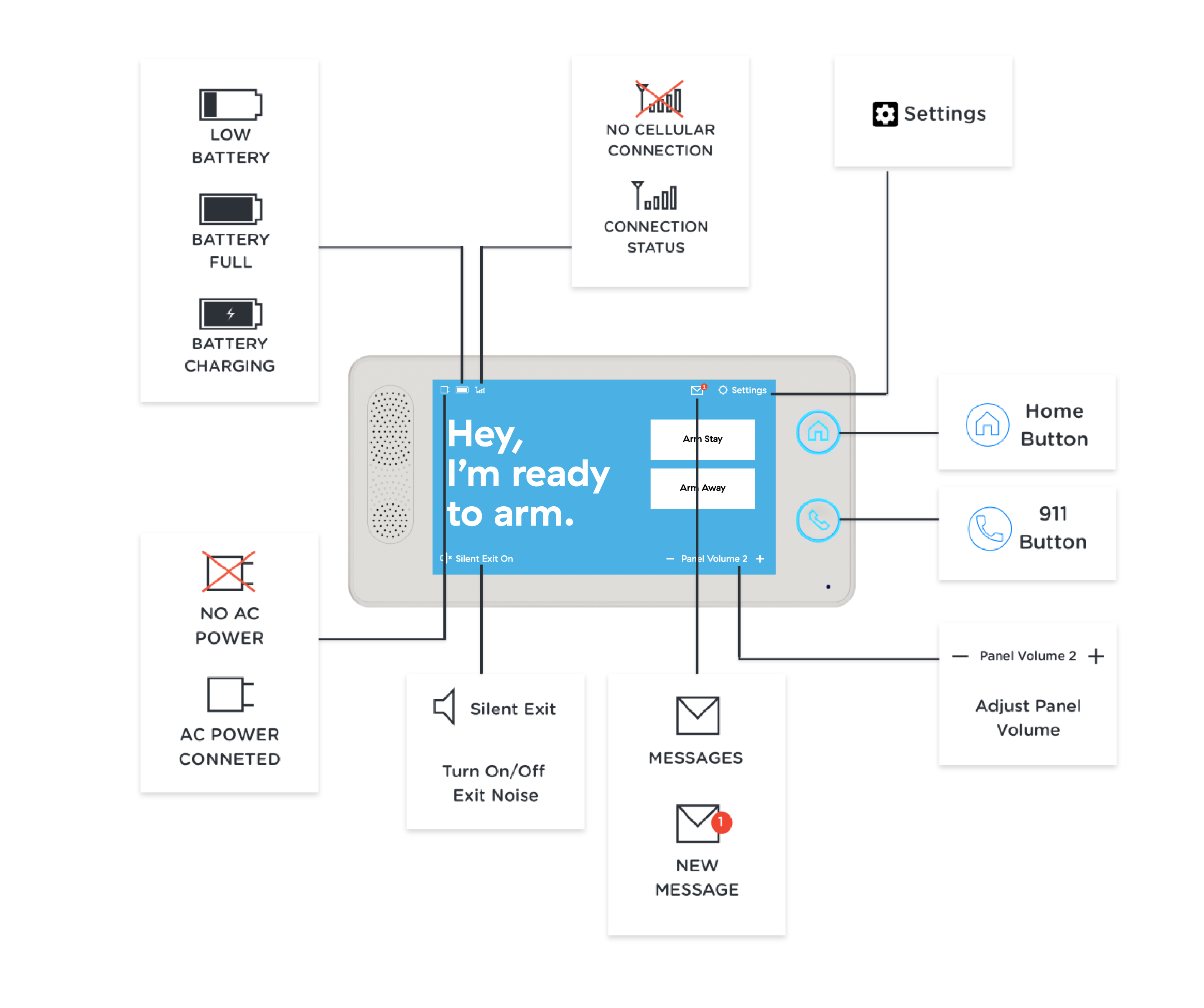
Let’s get you familiar with your panel display and what the different screen icons and LED lights mean. Below, we’ve broken it down into four key areas so you can get the most out of your system:

Panel Power

Your panel should stay plugged into a wall outlet at all times.
If it becomes unplugged, your panel will show a message:
“Panel AC Power Failure” – This means it's now running on backup battery power.


Backup Battery

Your panel includes a backup battery that can last up to 24 hours when fully charged.
If you see a “Low Battery” warning, plug the panel back into a power source as soon as possible to recharge.


Cellular Communication

Your panel uses AT&T’s secure cellular network to stay connected to our Monitoring Station through built-in two-way voice communication.

Note: The panel can only connect to AT&T towers and cannot use other providers like Verizon.

If your panel loses connection, you’ll see a Red X over the cell bars and a message that says:
“Panel Communication Failure”



Alarm Status

The LED lights behind the Home and Call buttons show your system's status:

  • Lights ON = Your panel is powered and actively displaying system status.
  • Lights OFF = Your panel is unplugged, or the LED display is turned off in settings.


Emergency Call Status

When you activate an emergency call from the panel, the LED lights will change to indicate an emergency is in progress — unless you've disabled this feature in your settings.


Messages & Notifications

Look out for the Message Inbox icon on your panel display.
A red number means there’s a new message waiting for you.


Silent Arming Option

Want a quieter exit?
You can silence the panel countdown beeps when arming your system. This also doubles your exit time, giving you more flexibility without the rush.


panel display

Was this article helpful?

Yes
No

Related Articles

  • How to Bypass Sensor
  • How to Delete/Remove a Sensor
  • How to Use the Emergency Call Button
  • Renaming a Sensor

Services

  • Home Security
  • Home Security Cameras
  • Medical Alert Systems
  • My Account

Company

  • Careers
  • Contact
  • Verify Rep
  • About
  • Blog
  • Locations
800.710.1289

Copyright Alder Holdings, LLC

Privacy Policy | Licensing


Knowledge Base Software powered by Helpjuice

br

Definition by Author

0
0
Expand