Installation Sensors Not Verifying
Your panel is designed to guide you through the installation and verification of your sensors during setup. If a sensor does not verify after three attempts, the panel will prompt you to call Tech Support. After which, press Done on the panel to continue.
Depending on the message shown on your panel, follow the steps below.
I’m Ready to Arm
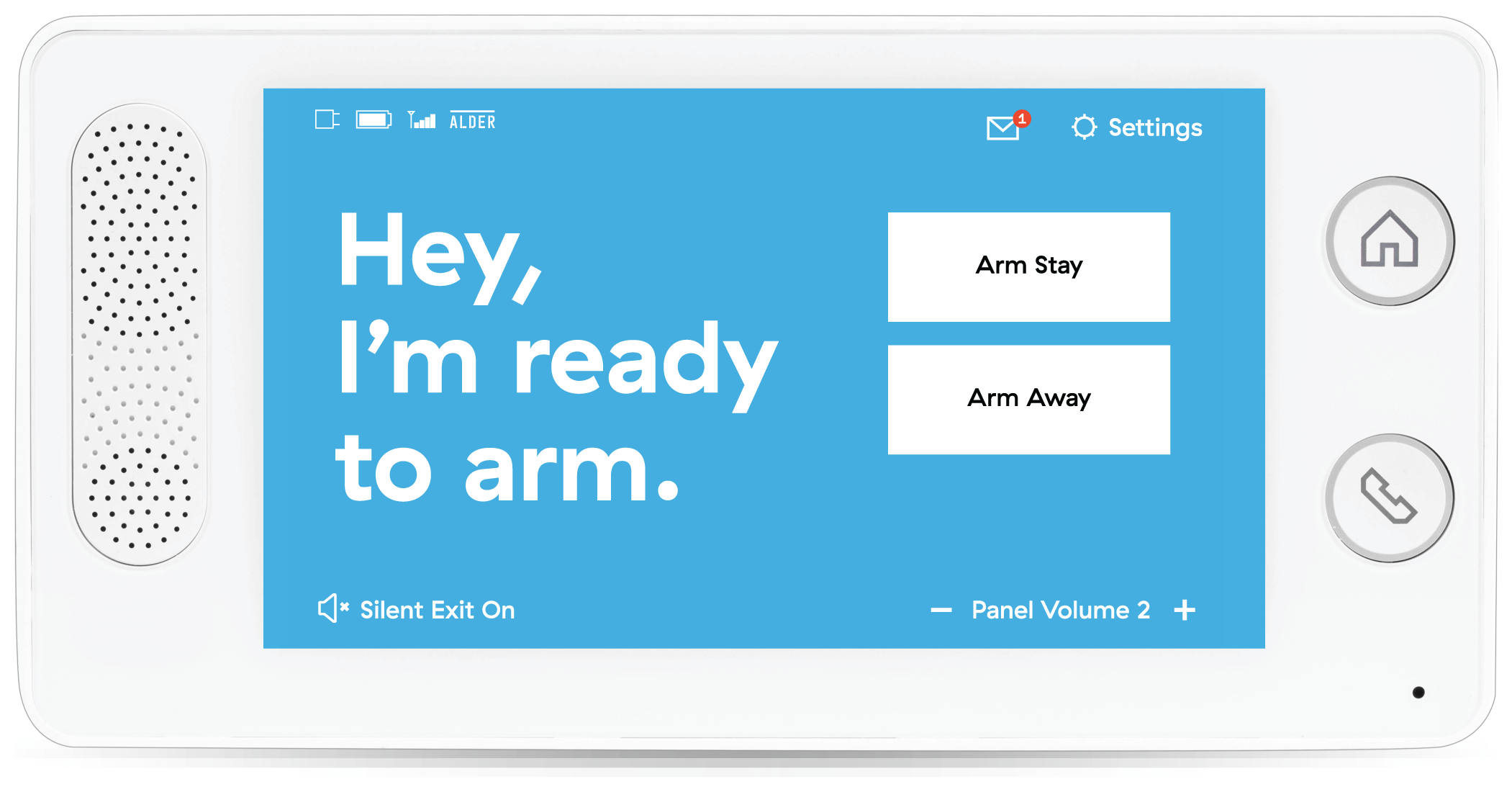
If the panel prompted you to call Tech Support and press Done, you may see the message “I’m Ready to Arm.” To complete installation:
Verify Sensors
- Tap Settings (gear icon in the top-right corner of the screen).
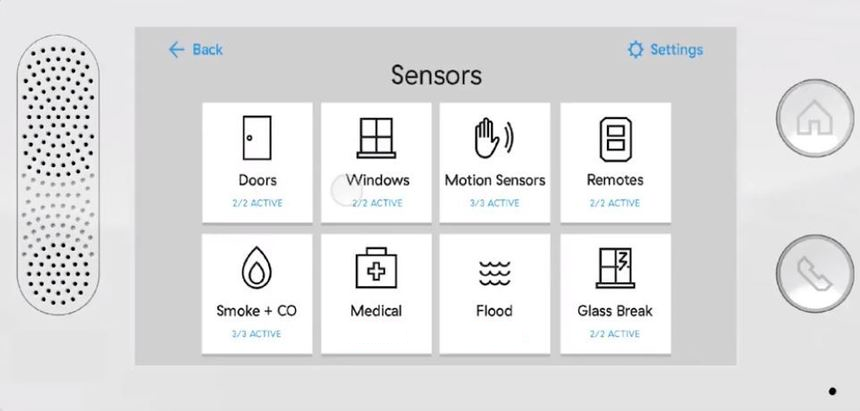
- Select Sensors.
- Confirm that all installed sensors are listed and show as Active.
Test Your System
- Tap Settings.
- Select System.
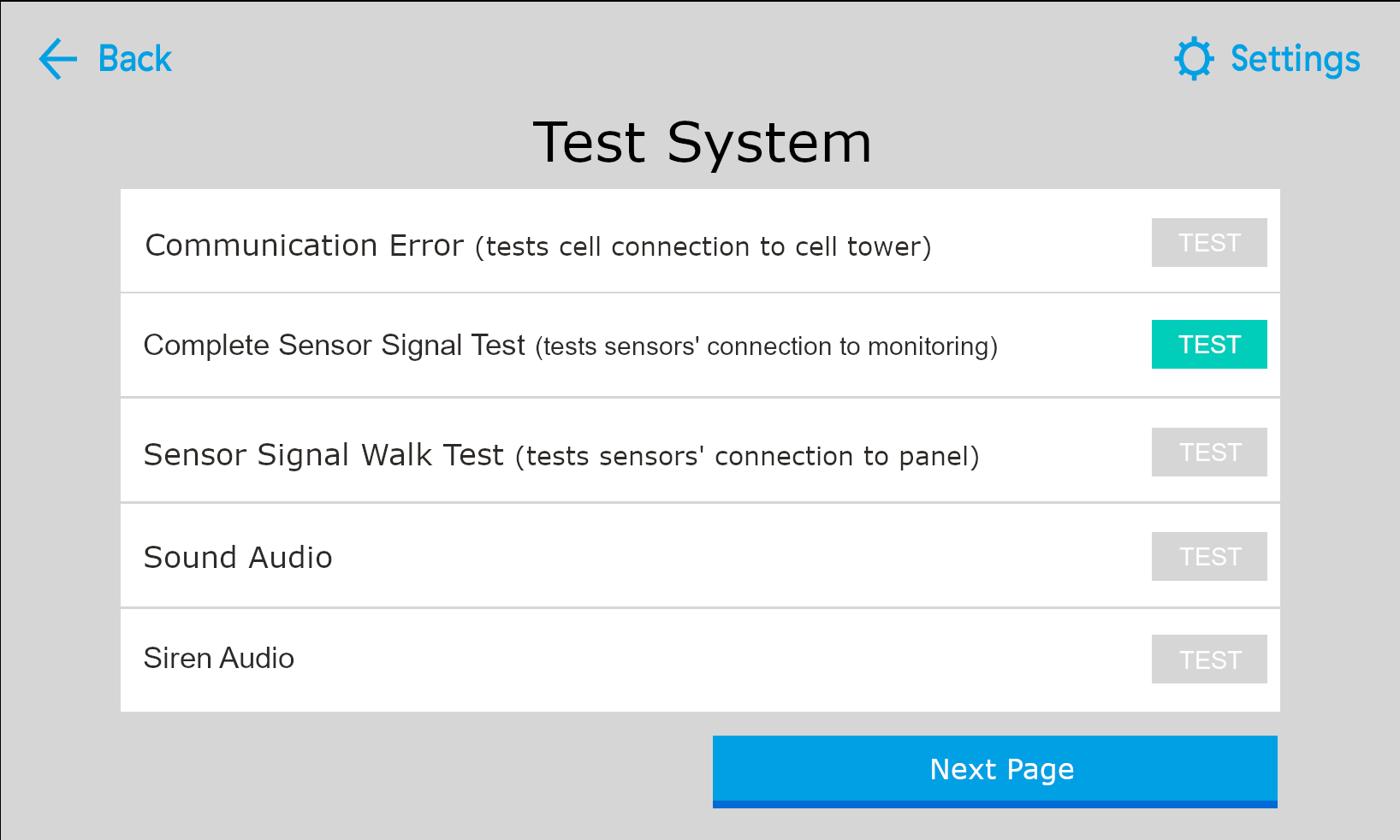
- Tap Test System.
- Select Test next to Complete Sensor Signal Test.
During the test:
- The screen will turn yellow and display “Test will end in 10 minutes.”
- A list of sensors will appear on the left, with Trigger displayed on the right.
- Walk around your home and open/close all doors and windows with sensors.
- Trigger any additional sensors (motion sensors, smoke detectors, key remotes, flood sensors, etc.) the same way you did when adding them to the system.
Refer to the guide below for examples of how to trigger each sensor type.
Pre-view of Install Wizard
Once the test is complete:
- You will return to the Test System page.
- The test button will appear green, blue, or teal, indicating a successful test.
Activate Monitoring
After testing is complete, call Support to activate your system with the monitoring station.
I'm Not Ready to Arm, Check your Sensors
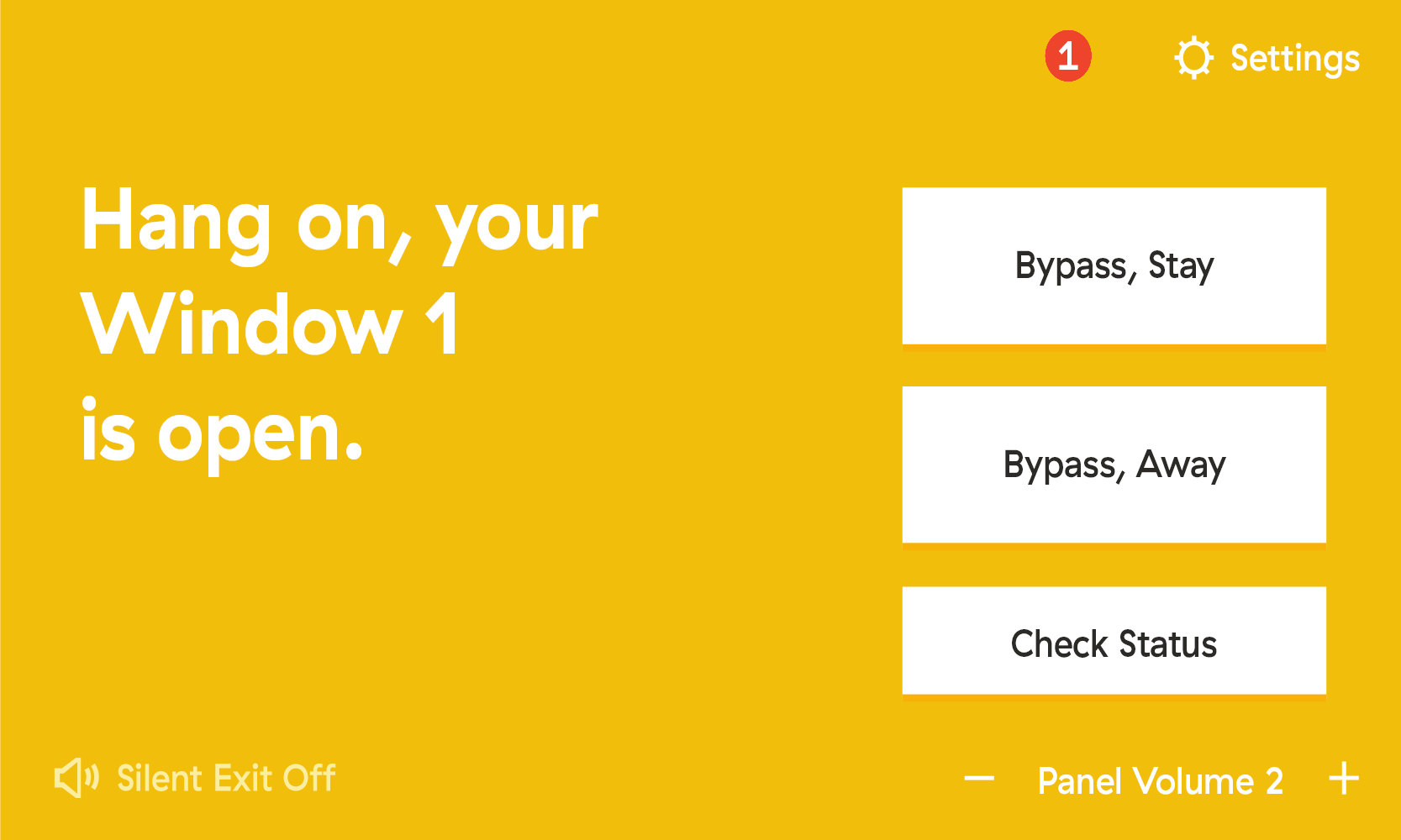
If the panel displays “I’m Not Ready to Arm, Check Your Sensors” after pressing Done, follow these steps:
Check Sensor Status
- Tap Check Status or go to Settings.
- Enter your 4-digit Master PIN.
- Select Sensors.
- Verify all sensors show as Active.
- If a sensor shows Open when it is closed, troubleshoot that sensor before continuing.
- Press the Home button.
- If the panel now shows “I’m Ready to Arm,” continue to system testing.
Test Your System
- Go to Settings.
- Select System.
- Tap Test System.
- Select Test next to Complete Sensor Signal Test.
Once the test completes:
- You will return to the Test System page.
- The test button will appear green, blue, or teal.
Activate Monitoring
After testing is complete, call Support to activate your system with the monitoring station.