Contact Us

If you still have questions or prefer to get help directly from an agent, please submit a request.
We’ll get back to you as soon as possible.

Please fill out the contact form below and we will reply as soon as possible.

  • Alder Knowledge Base Home
  • Contact Us
  • Home
  • Luna Simple Panel
  • Troubleshooting

3G Panel Sunset

Updated at December 18th, 2025

Contact Us

If you still have questions or prefer to get help directly from an agent, please submit a request.
We’ll get back to you as soon as possible.

Please fill out the contact form below and we will reply as soon as possible.

  • Account
  • Alder Alula System
    Installation Using System Arming/Disarming System Troubleshooting
  • Luna Simple Panel
    Installation Preferences and Settings Using System Arming/Disarming System Troubleshooting History and Alarm Events
  • FAQ
  • Alder App
    Alder App- Troubleshooting
  • GC2 Panel
    Using the GC2 Panel Troubleshooting the GC2 Panel FAQ - GC2 Panel
  • Cameras
    Outdoor Camera - Alder Indoor Camera - Alder Doorbell Camera How to Use- Cameras Troubleshooting- Alder Camera
+ More

On Tuesday, February 22, 2022, AT&T discontinued (sunset) its 3G cellular network. Some Alder customers were affected by this change and required a panel upgrade to continue uninterrupted monitoring service.

This article explains how to replace your AT&T 3G panel with your new 4G LTE panel.

Before You Begin

  • Do not unplug or stop using your old panel until the switch to the new panel is fully complete.
  • Your panel settings and 4-digit user codes will not transfer to the new panel.
  • You will need to:
    • Re-enable system settings
    • Change the Master Code
  • If you use the app and have secondary users:
    • Their PINs will not transfer
    • You must recreate their PINs and re-enable Panel Access in the app

Plugging In Your New Panel

On or before February 22, plug in your new 4G panel.

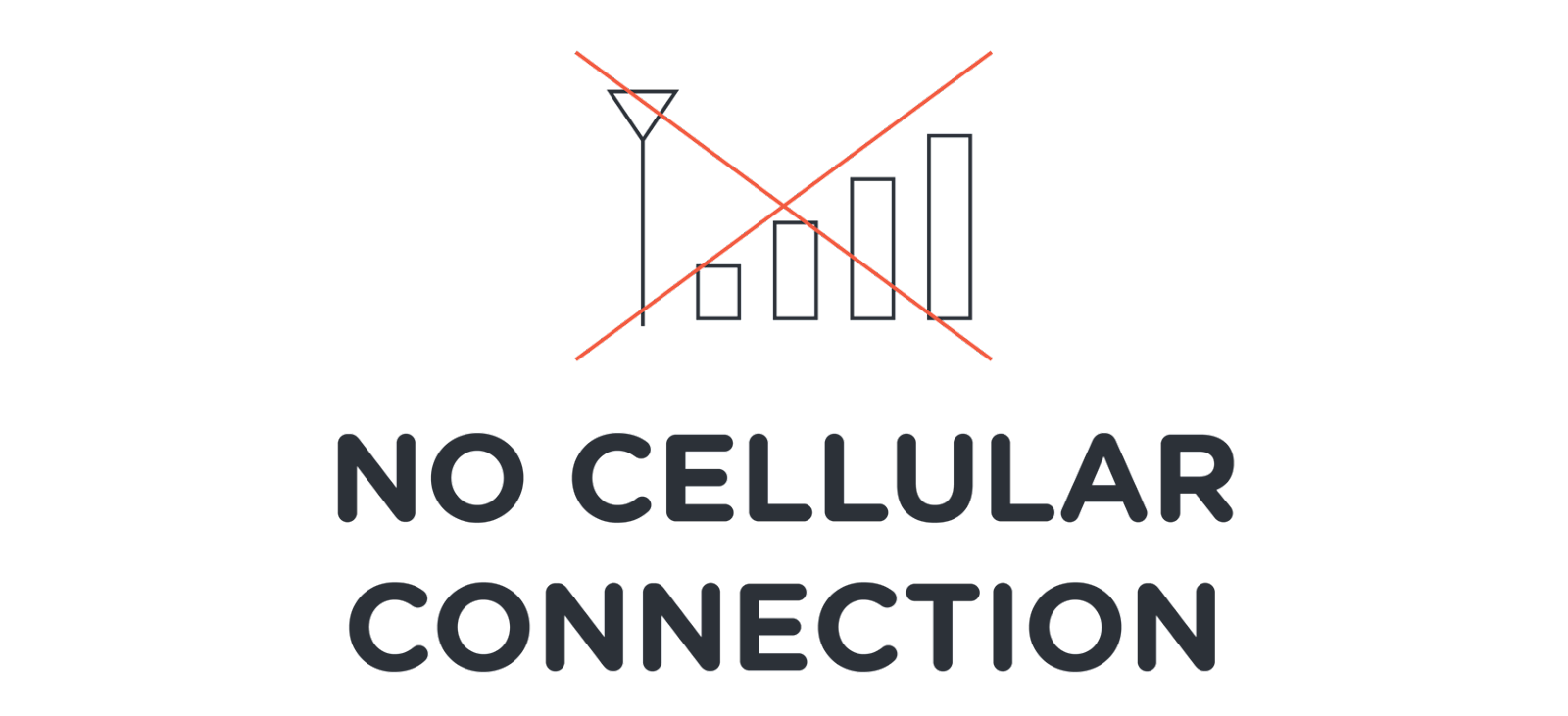
You will see a red X in the top-left corner of the screen.

This is expected.
The red X means the new panel is not yet communicating with the cellular network.


Activation Process

  • Over the next few days, your new panel will automatically activate.
  • All of your sensor information will transfer to the new panel.
  • Until activation is complete:
  • Your old 3G panel will remain active
  • You may continue to arm and disarm your system as usual

How to Know the Switch Is Complete

  • The process is complete when the red X disappears from the new panel.
  • This confirms the new panel is communicating with the cellular network.

Change the Master Code on the New Panel

Once the red X is gone, you must change the Master Code.

Default Master Code: 3333
(If that does not work, try 1234)

Steps to Change the Master Code

  1. Tap Settings (top-right corner of the panel).
  2. Enter the default Master Code.
  3. Select User Passcodes.
  4. Select Reset next to Master Passcode.
  5. Enter your new 4-digit passcode.

This is the code you will use to arm and disarm your system.

Your new panel is now ready to use.

Option 2: Switch Early With Support Assistance

If you prefer to switch your panel sooner, call 844-442-5337 and speak with an Alder representative. Let them know you have received your new 4G LTE panel and need help switching the control panel.


Help Alder Recycle Your Old Panel

Once your new panel is active, please recycle your old 3G panel using the provided return label.

How to Shut Down the Old Panel

  1. Unplug the panel from the outlet.
  2. Press and hold the Home and Phone buttons together for 10 seconds.
  3. When prompted, enter your Master Code.
  4. Place the panel and power cord into the same packaging your 4G panel arrived in.
  5. Attach the return label.
  6. Drop the package off at any FedEx location.


App Instructions – Re-Creating Secondary User PINs

If your account has secondary app users:

  1. Open the Alder App.
  2. Go to Settings → Users.
  3. Select a user.
  4. Enable Panel Access.
  5. Create and confirm the user’s 4-digit PIN.


retirement 3g technology

Was this article helpful?

Yes
No

Related Articles

  • Panel Communication Error
  • Resetting Panel
  • Panel Not Powering ON
  • Alarm Event - AC Power Loss

Services

  • Home Security
  • Home Security Cameras
  • Medical Alert Systems
  • My Account

Company

  • Careers
  • Contact
  • Verify Rep
  • About
  • Blog
  • Locations
800.710.1289

Copyright Alder Holdings, LLC

Privacy Policy | Licensing


br

Definition by Author

0
0
Expand